What is Two-Factor Authentication
Two-factor authentication is an optional but recommended feature to increase the security of your Seznam Account.
When signing in, in addition to your password, you also enter a one-time code from an authentication app installed on your phone.
Each account or service has its own unique code in the app, which changes regularly. You can also set up so-called trusted browsers – in these, you will only need to enter the code the first time you sign in.
Tip: If you use email clients, once you enable two-factor authentication, you will also need to set up a special password for these programs.
How to enable two-factor authentication
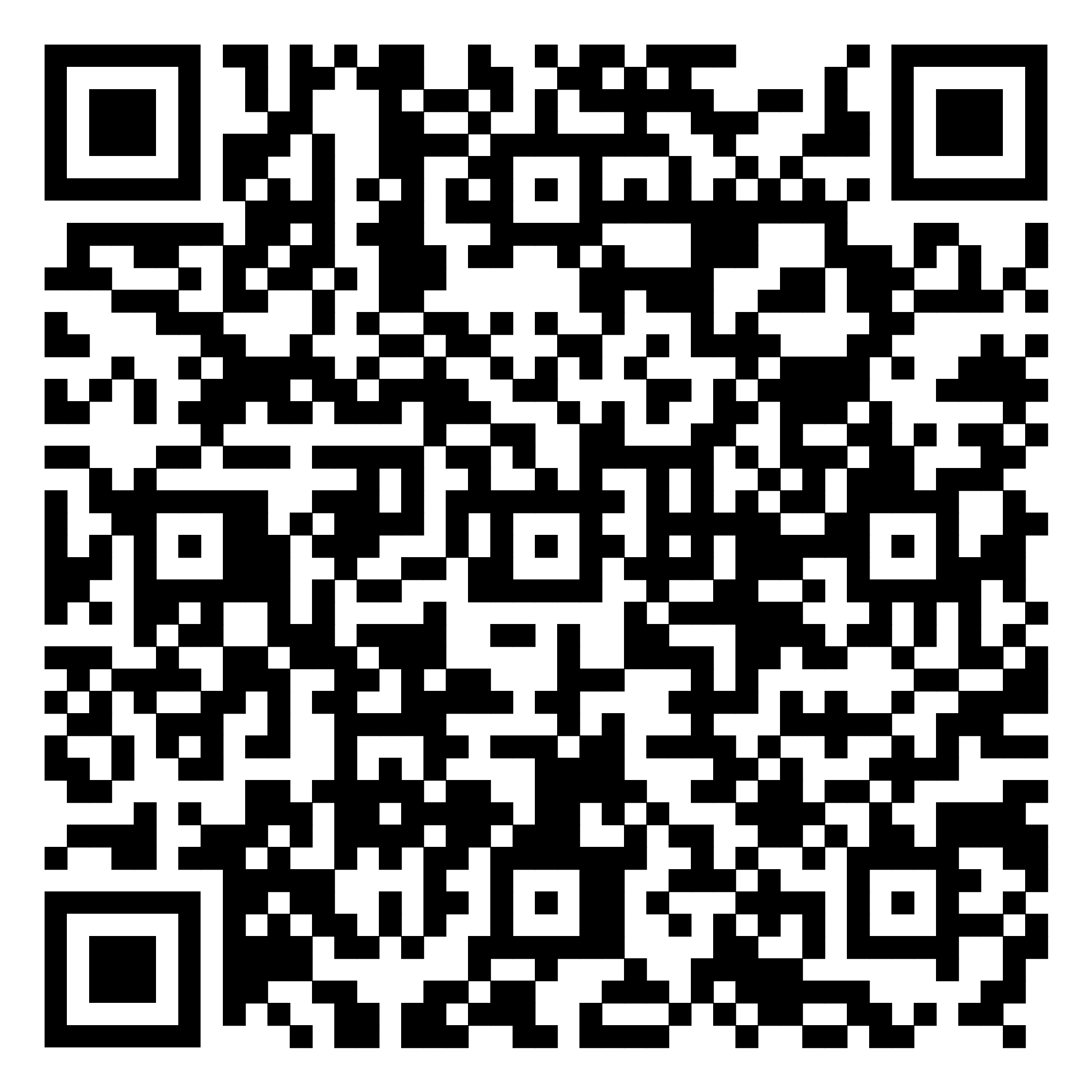
- Download an authentication app to your phone, such as Google Authenticator, Microsoft Authenticator, or Authy (you may also use another app).
Google Authenticator

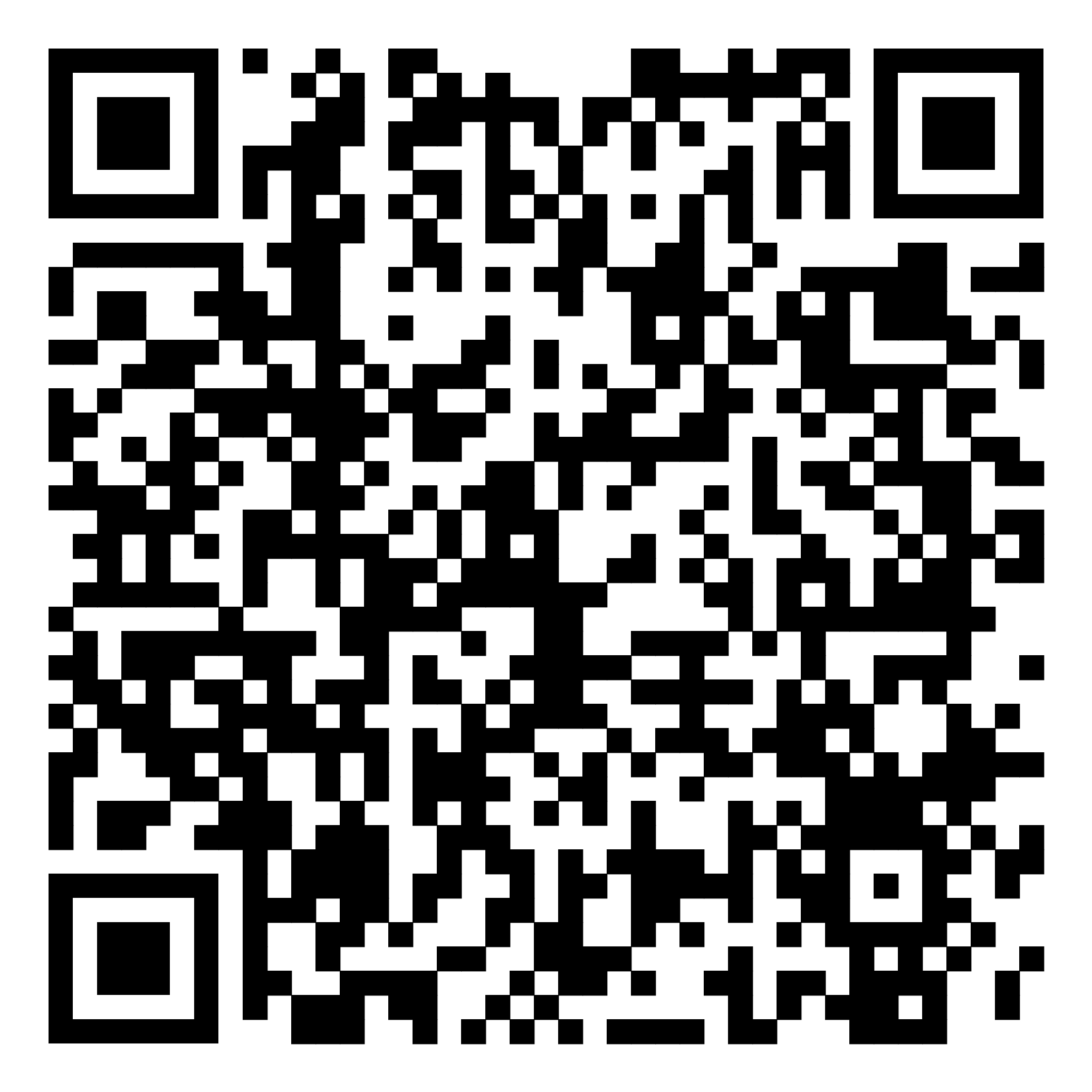

Microsoft Authenticator
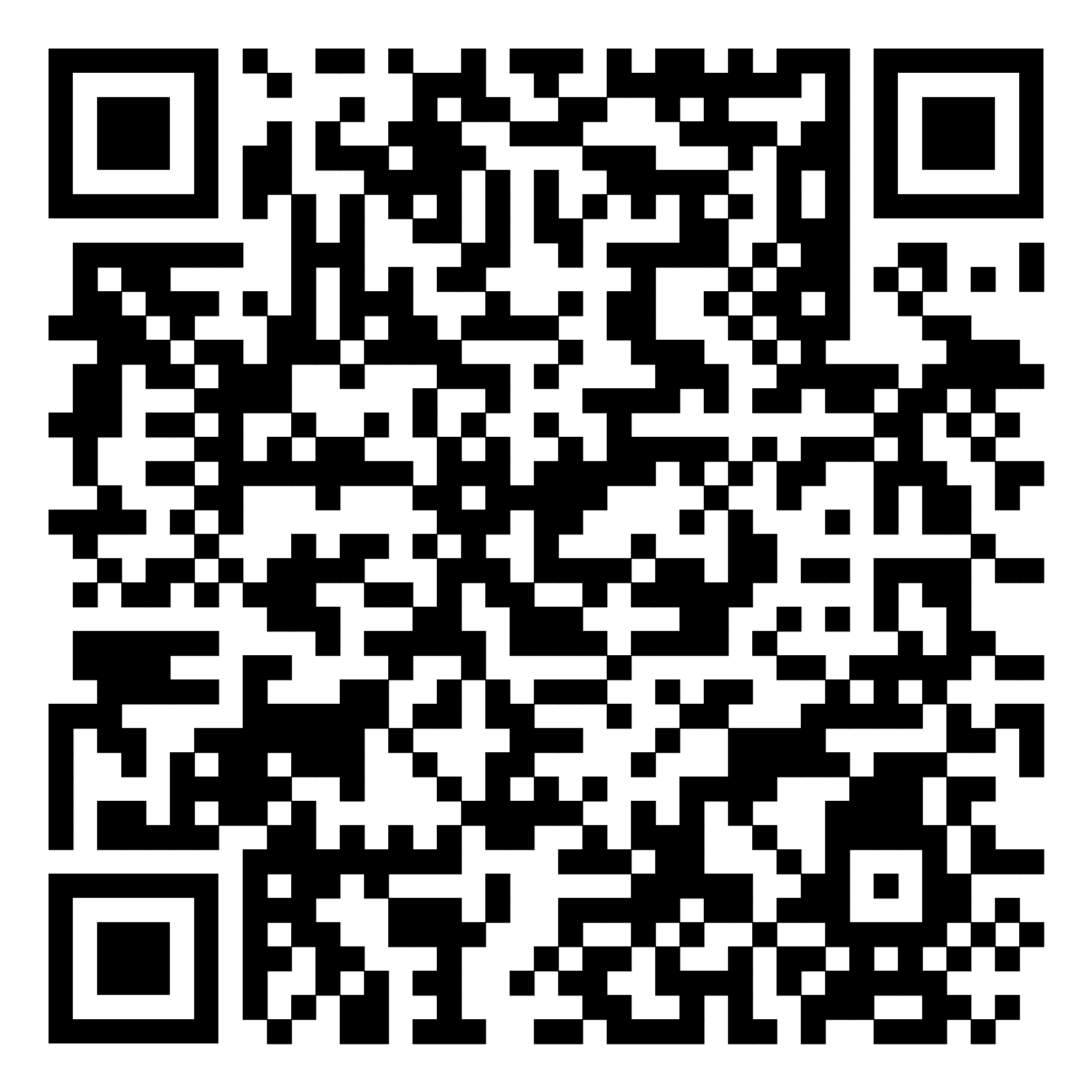
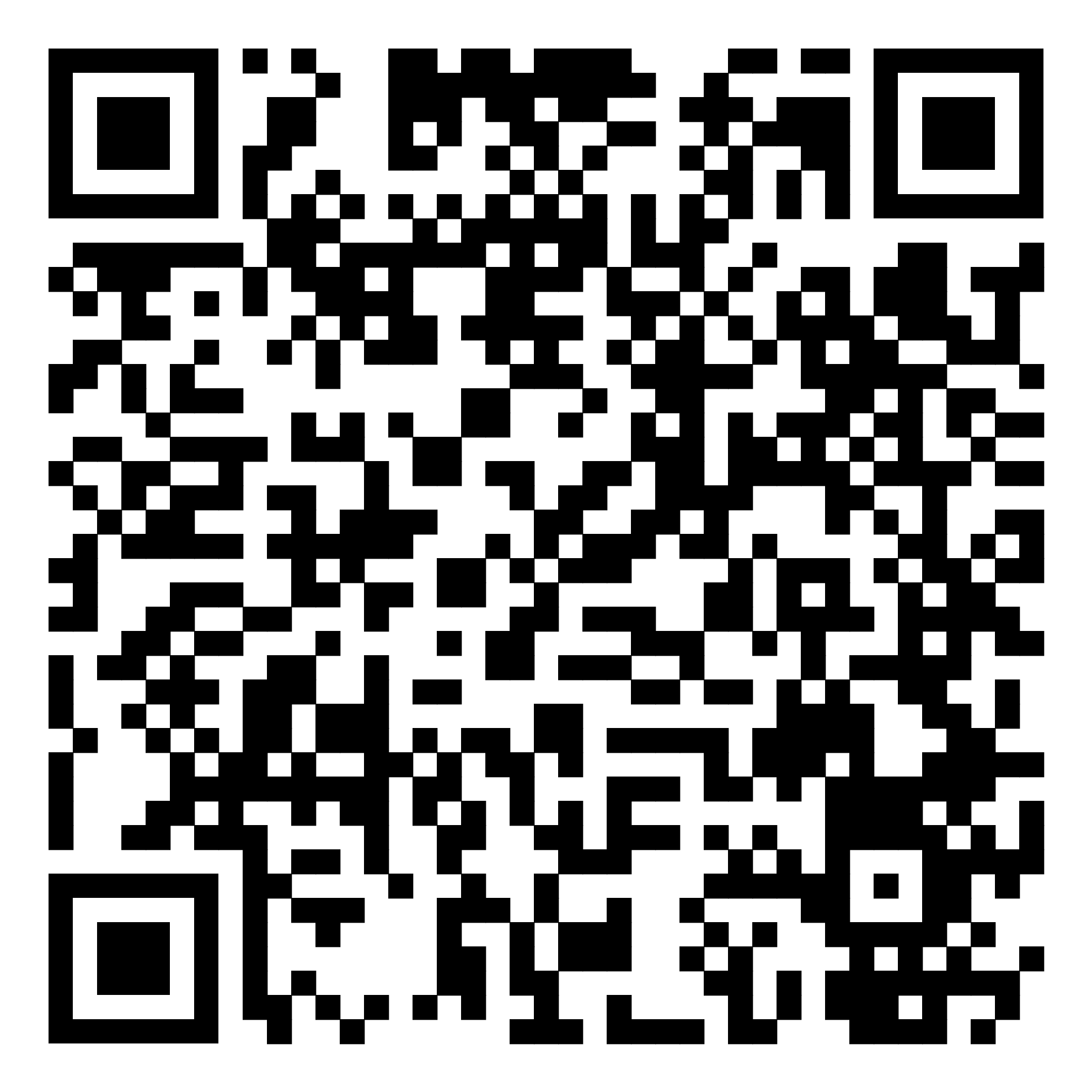
Authy
2. In your Seznam Account settings, open the Account Security tab and find the Two-factor authentication section. You may be asked to verify that the account really belongs to you before you can continue.
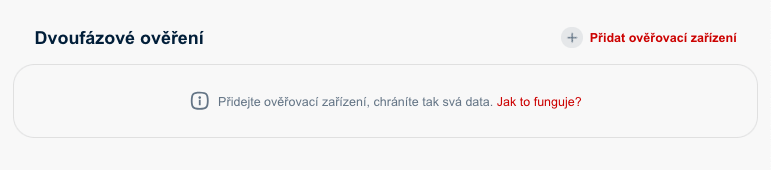
3. Click Add verification device and follow the instructions:
- Enter a name for the device so you can recognize it later (e.g. “mobile – Google Authenticator”)
- After clicking Continue, a QR code and alphanumeric key will appear for adding the account to the authentication app
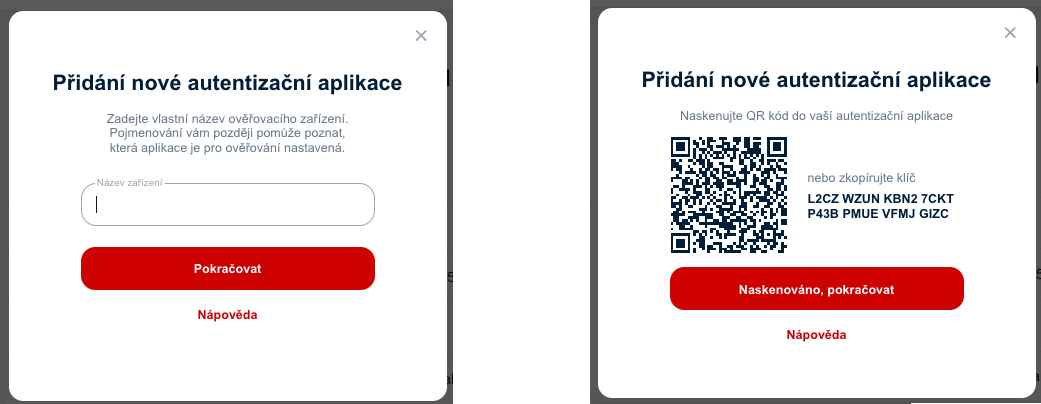
- In the authentication app, choose Scan QR code or Enter key
- After scanning the QR code or entering the key, your account will appear in the authentication app
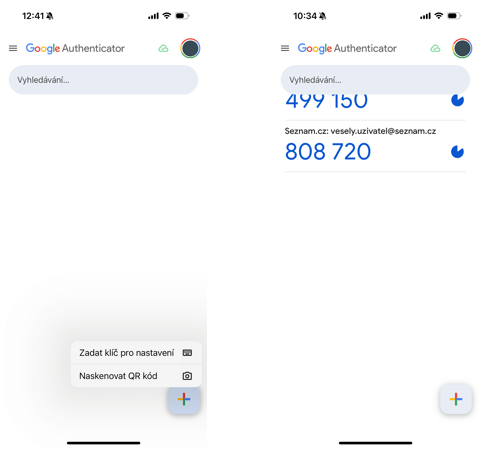
- In your account, confirm by clicking Scanned, continue. A field will then appear for entering the code shown in the authentication app
- After successfully entering the code and clicking Finish, please make sure you have the correct and up-to-date recovery phone number set
- By confirming/updating your recovery phone number, you will complete the process of adding a new verification device
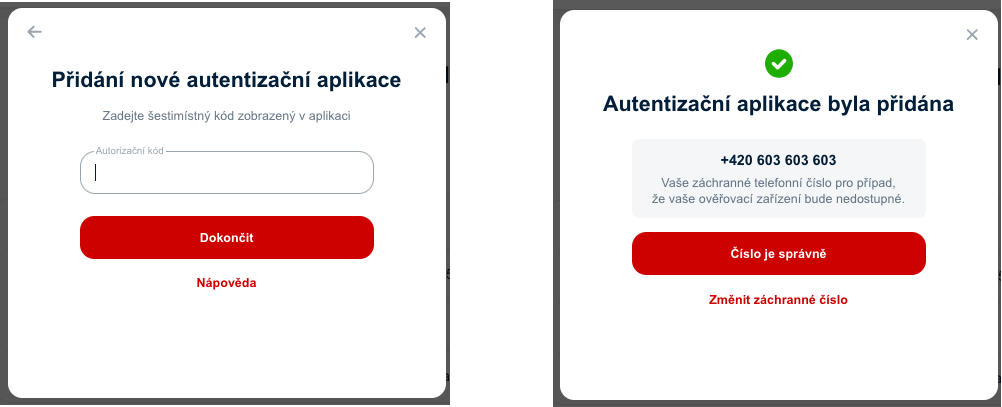
You can find the list of your verification devices in your Seznam Account, displayed clearly with the time each was added.
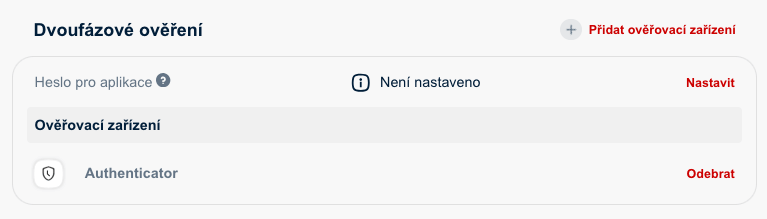
Note! If you use email clients or apps to send and receive messages, such as Outlook, Thunderbird, etc., after enabling two-factor authentication you must set up a new password that will only work for the email protocols IMAP/POP3 and SMTP.
You can find the setup instructions in the section Downloading messages with an email client.
As soon as your email client or app tries to connect to your mailbox after enabling two-factor authentication, you will automatically receive an email notification reminding you to set up a special password.
How signing in with two-factor authentication works
If you have two-factor authentication enabled for your Seznam Account, after successfully entering your username and password you will be asked to enter a code from your authentication app.
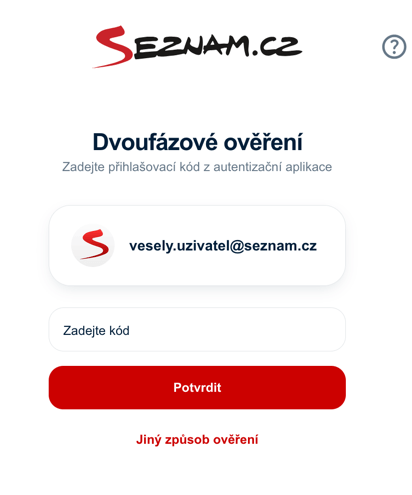
After successfully entering the code, you can mark the browser where you signed in as Trusted. If you do so, the code from the authentication app will not be required for your future sign-ins from this browser (only your username and password will be needed).
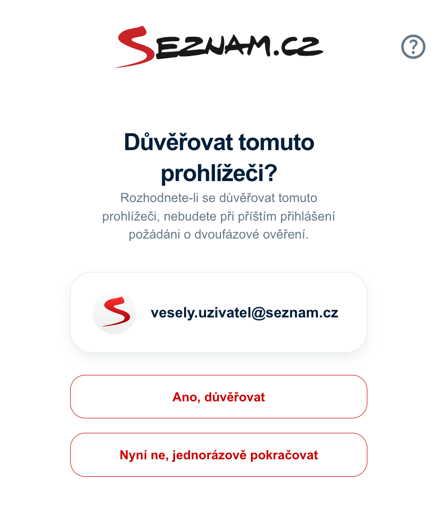
Tip: You can set up a trusted browser so you won’t have to enter a code from the authentication app every time you sign in.
Tip 2: If for some reason you are unable to complete the verification, follow the instructions in the article I have problems with verification.
How to disable two-factor authentication
- Sign in, then in your Seznam Account settings open the Account Security tab and find the Two-factor authentication section. You may be asked to verify that the account really belongs to you before you can continue.
- In the Two-factor authentication section, remove all verification devices (one by one).
- After removing the last device, two-factor authentication will be disabled. Your sign-in will no longer be protected by the authentication app, and you will log in only with your username and password.
Important! If you set up and used a special password for email clients, it will no longer be valid. You will need to reset your email client or app back to the regular password you use to log in to your email account.