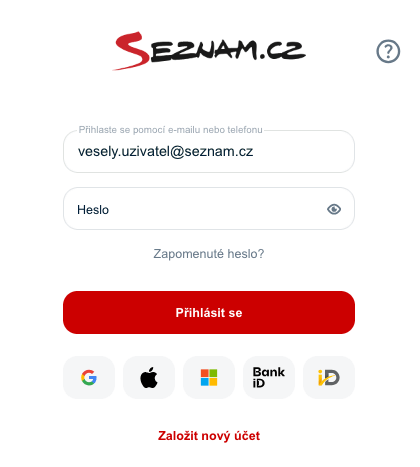
Sign in with a username and domain (email)
To sign in to Seznam.cz services, simply click “Sign in” in the top right corner of the page.

Enter your username with domain (e.g. vesely.uzivatel@seznam.cz) or your phone number in the sign-in field if you have it set for signing in. You can also sign in through another provider – Google, Apple, Microsoft, BankiD or MojeID.
In addition to the standard form, you may also encounter the “green” Mapy.com form.
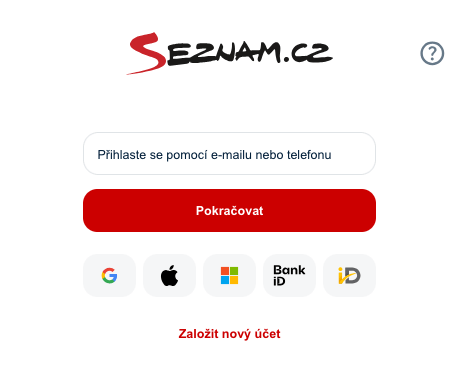
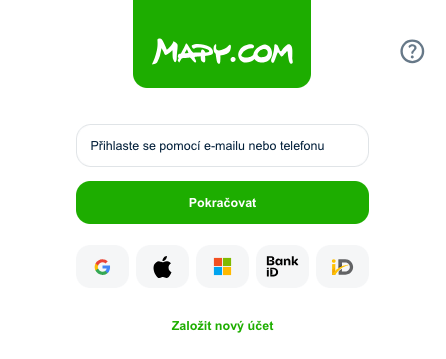
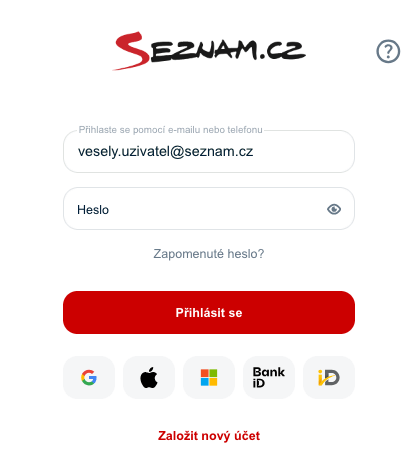
After entering your details, click “Continue” and enter your password in the next field. If you have forgotten it, choose the option Forgot password? and follow the instructions.
If you choose to sign in using SMS instead of a password, you will receive an email containing information about the time, location and device from which the sign-in was performed.
Click Sign in (Přihlásit se). If you have two-factor authentication enabled, you will be asked to confirm it using the selected method.
After a successful sign-in, the account icon will appear in the top right corner – either your profile picture, your email initials, or a phone symbol if you are using an account based on a phone number.

Simple Sign-In
If you have previously signed in to one of the services and have not used the “forget account” option yet, you will be offered the possibility to sign in to the same account again – quickly and without re-entering your credentials.
At this moment, the service displays a badge with the account icon or a placeholder icon with the initials of the email address.

On the page you will see the account icon (profile picture, email initials or a phone symbol). After clicking it, a menu with several options will appear:
- Sign in – sign in again to the previously used account
- Forget user – completely signs out the user account
- Add another account – allows signing in with a different username
- Manage accounts – displays an overview of all saved accounts and their management
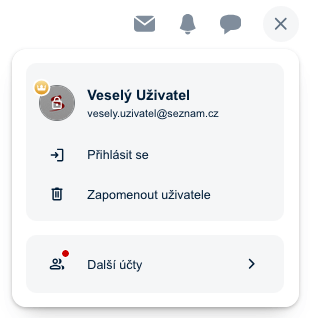
If you choose “Sign in”, a sign-in form will appear with the username of the remembered account already filled in – you only need to enter the password and confirm with the “Sign in” button.
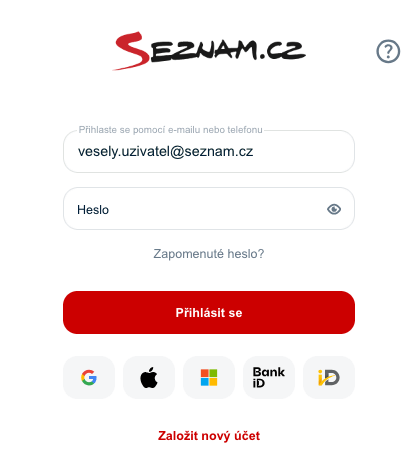
If you choose “Add another account”, a new form will open where you enter the credentials of the new account.
Signing In with a Phone Number
You can sign in to your Seznam account not only with your email, but also with your phone number. You can enable this option in your account settings.

If the “Use phone number for signing in” feature is active or if the account is created directly with a phone number, simply enter it in the sign-in field instead of the email address.
The sign-in process works the same as usual – you use the same password set for your account. If you do not have a password yet, you need to create one first. Signing in with email will of course remain available.
If you use a foreign phone number, do not forget to include the international dialing code (e.g. +421 xxx xxx xxx).
If you no longer want to use this option, you can disable it at any time in the account settings by clicking “Disable” next to the listed number.
If the same phone number is listed for multiple accounts, it can only be used for signing in to one of them. Once you enable phone number sign-in on one account, it will automatically be disabled on all others.
Single sign-on
Single sign-on makes it easier to use all Seznam.cz services. Just sign in to one service and you can move between services such as E-mail, Mapy.com, Zprávy and others without repeatedly entering your credentials.
If a service is not signed in automatically, simply click “Sign in” and select your account. If you need to use a different account, choose the option “Continue with another account”.
Single sign-on does not limit you in any way – you can sign out or switch to another account at any time. Just click the account icon in the top right corner of the page and select “Sign out”.
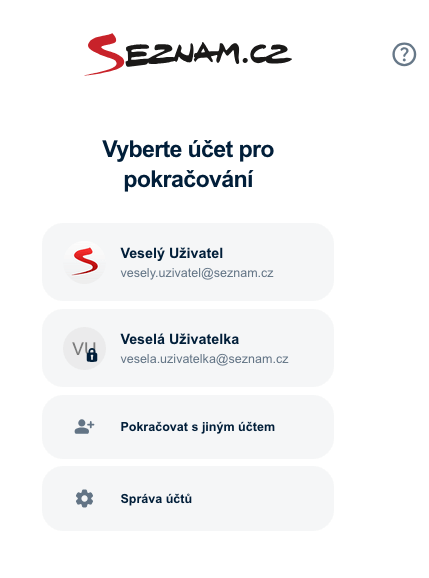
Signing In using provider buttons
You can also sign in to your Seznam account using an account from another provider – Google, Apple, Microsoft, BankiD or MojeID.
If you already have one of these accounts linked to your Seznam account, simply click the corresponding provider button on the sign-in page, or fill in the email field and enter your password (and confirm two-factor authentication if required) and you will be signed in.
If your account is not linked yet, you can easily set up the connection by following the instructions in the help section.