A passkey is a digital key stored directly on your phone or computer. Instead of remembering a password, your device verifies your identity for you – using your fingerprint, Face ID or PIN.
Unlike a password, a passkey cannot be stolen, copied or accidentally disclosed. This means it provides better protection against fraudulent emails and websites (phishing).
Your biometric data (such as your fingerprint or scanned face) is stored on your personal device and is not shared with us in any way.
Creating a passkey
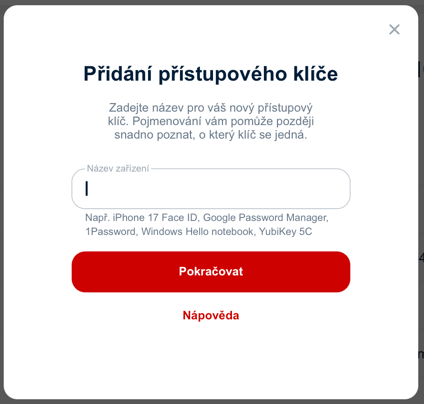
You can create a passkey in your account under Security, in the Passkeys section.
Click Create a passkey and follow the instructions on your device’s screen (creating a passkey will require your fingerprint, Face ID or PIN).
The final step in creating a passkey is verifying your recovery phone number (in case you ever find yourself in a situation where you cannot use the device with your passkey).
Warning: Only create a passkey on your own device!
Tip: If you use email programs, after creating a passkey you will also need to set up a special password for these programs.
Upgrading a security key to a passkey
If you already have a security key added to your Seznam account, you can easily upgrade it to a passkey. This gives you a faster and more convenient way to sign in.
What changes? The security key itself remains physically the same, but its functionality is expanded. After the upgrade, you can use it as a passkey – that is, to sign in without a password.
Go to passkey management, find your security key and click Change.
In the dialog that appears, select the Upgrade to a passkey option, enter a name to help you identify the key later, and click Continue. The system will ask you to confirm the key using your fingerprint, Face ID or PIN.
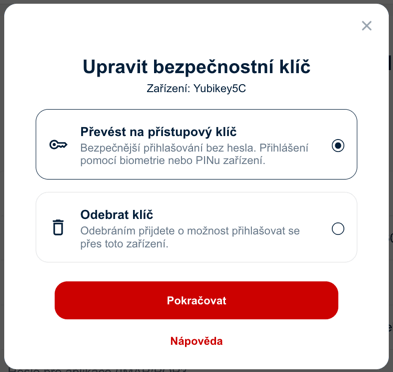
After successful verification, your original security key becomes a passkey and you can use it to sign in to your account without entering a password. It will now appear in the Passkeys section.
Signing in with a passkey
You do not need to enter a username or password to sign in with a passkey. Simply click the key icon and then sign in using the passkey saved for the account.
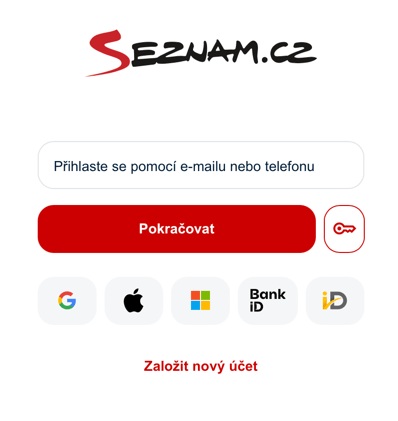
After clicking the key icon, a dialog will appear with the options available for your device:
- Select from saved keys – if you have a passkey saved on your device (e.g. in the system key manager on a Mac, iPhone or Android device), select it from the list and confirm your identity using your fingerprint, Face ID or PIN.
- Scan a QR code – if you have a passkey saved on another device, select this option and scan the displayed QR code using that device. You will then be asked to confirm your identity.
- Physical security key – if you use a hardware key (e.g. YubiKey), connect it to your device via USB or NFC, enter your PIN and touch the key to confirm your identity.
You can of course also sign in using your password. In that case, the passkey will serve as the verification method in the next step.